We may need multi-language support structures for various reasons, such as reaching a broader audience or attracting more visitors to our websites. In this article, we will learn how to build multi-language-supported websites with ASP.NET Core, which has become almost a standard today.
The examples and implementations will be compatible with .NET 9 and ASP.NET Core 9 MVC, using the C# language. A similar structure can also be used with other .NET versions, Razor Pages, or WebAPI. Due to the use of WebAPI, the localization structure used on the view is explained in separate sections.
To use localization support within ASP.NET Core, we need the “Microsoft.AspNetCore.Mvc.Localization” library. Since this library is included in “Microsoft.AspNetCore.Mvc”, there is no need to reference it separately. The same applies to Razor Pages, which also work on the same MVC structure and are embedded within the “Microsoft.AspNetCore.App” framework package.
As the first step, we need to register the necessary services in the “Program.cs” file. When our application starts, the related services will be initialized as defined here. While defining language support, we will support for English and Turkish languages. The default language will be English.
We will not go into details like “What does service registration mean?”. Those who are curious can research ASP.NET Core Dependency Injection. However, knowing these details is not required to understand this article—you can continue reading.
// We register the localization service and define the folder path for resource files.
builder.Services.AddLocalization(options => options.ResourcesPath = "Resources");

builder.Services.Configure<RequestLocalizationOptions>(options =>
{
    // We create a list of supported cultures for our application.
    var supportedCultures = new List<CultureInfo>
    {
        new CultureInfo("en-US"),
        new CultureInfo("tr-TR")
    };

    // We define the default culture that our application should use.
    options.DefaultRequestCulture = new RequestCulture("en-US");
    options.SupportedCultures = supportedCultures;
    options.SupportedUICultures = supportedCultures;
});

// We add ViewLocalization and DataAnnotationsLocalization options to the MVC service.
builder.Services.AddControllersWithViews();
After completing the registration, we also need to define the middleware that will handle the language setup within the same file (Program.cs). Here, we pass the parameters we defined in the “RequestLocalizationOptions” to the middleware. This method runs at runtime and allows configuration for incoming HTTP requests.
var localizationOptions = app.Services.GetRequiredService<IOptions<RequestLocalizationOptions>>().Value;
app.UseRequestLocalization(localizationOptions);
In short, first we registered the services related to localization, and then we told our application to use the localization middleware for handling requests.
Make sure the following namespaces are included in your code for the CultureInfo and RequestCulture classes used above:
If you plan to support English in your application, remember that “en-US” refers to American English, while “en-GB” refers to British English.
After defining language support, we can now create the language resource files that will hold the related texts. For this, create a new folder named “Resources” in the root directory of the application. This folder name was specified earlier in the “AddLocalization” configuration in “Program.cs”. You are free to choose the folder name.
We will not create any additional Controllers or Views in the application. Instead, we will use the default “HomeController.cs” and its View files that come with a new ASP.NET Core MVC project.

Using Resource Files from the Controller
We will start with the “Privacy” action method inside the “HomeController.cs” file. We will display the ViewData[“Message”] value according to the language selected by the user. For this, we will create two resource files under the “Resources” folder:
“Controllers.HomeController.en-US.resx” and “Controllers.HomeController.tr-TR.resx”.
(Right-click on the “Resources” folder, select “Add New Item”, then choose “Resources File”. If you do not see the template, click on “Show All Templates”.)

You can create the file names in two different ways, depending on your preference. In our example, we will use the dotted naming convention.
| Resource File Name | Naming Type |
|---|---|
| Resources/Controllers.HomeController.tr-TR.resx | Dotted naming |
| Resources/Controllers/HomeController.tr-TR.resx | Folder structure |

After creating the resource file, click the “+” button in the top left and add a new key named PrivacyPolicy. We will use this key later. For now, you don’t need to fill in other fields.

Controllers.HomeController.en-US.resx
Controllers.HomeController.tr-TR.resx
We left the “Neutral Value” field empty. This field is shown to users when no specific culture is selected. Since we already defined “en-US” as the default language in the middleware, it will automatically be used. If we hadn’t defined a default language in the middleware or created a default resource file, we could have used the “Neutral Value” field instead.

Once the value is added, click “Columns” from the top toolbar and select “Show All Cultures”. This allows you to edit all languages within a single resource file.
In the “en-US” column, write “Privacy Policy”; in the “tr-TR” column, write “Gizlilik Sözleşmesi”. The final screen should look like the one below.

This configuration applies to the latest version of Visual Studio 2019. In older versions, you may need to edit the resource files separately.
After completing the resource files, we can now use them in our application.
Go to the “HomeController.cs” file and create a localizer. This localizer will be of type IStringLocalizer and will be injected with the current controller so that we can access the corresponding resource values. We will use constructor injection via Dependency Injection.
Add the following code to the top of the controller:
private readonly IStringLocalizer<HomeController> _localizer;

public HomeController(IStringLocalizer<HomeController> localizer)
{
    _localizer = localizer;
}
The final version of the code should look like this. Since there is already an ILogger in the existing structure, you can add this next to it without removing it. The ILogger has no relation to our current topic.

Now that we’ve created our _localizer instance and populated it via dependency injection, we can use it.
Go to the Contact action and update ViewData[“Title”] to pull the value from the resource file. You can use _localizer[“PrivacyPolicy”] or _localizer.GetString(“PrivacyPolicy”).
Update the Privacy action method in the HomeController as shown below:
public IActionResult Privacy()
{
    //ViewData["Title"] = _localizer["PrivacyPolicy"];
    ViewData["Title"] = _localizer.GetString("PrivacyPolicy");

    return View();
}
Now go to the “/Views/Home/Privacy.cshtml” file. Normally, the ViewData title is defined at the top of the page. Comment that out since we already assigned the value in the controller.
// @{
//     ViewData["Title"] = "Privacy Policy";
// }
<h1>@ViewData["Title"]</h1>

<p>Use this page to detail your site's privacy policy.</p>
Run your application and click the Privacy link in the menu to navigate to the page. You will see the title change according to your computer’s language settings.
Now let’s confirm that the language support works by calling the page in two different ways:
http://localhost:53218/Home/Privacy?culture=tr-TR
http://localhost:53218/Home/Privacy?culture=en-US
* Replace 53218 with your application’s running port.

You’ll notice that the message changes based on the culture value passed via QueryString.
You can also use the following query string formats:
?culture=tr-TR
?ui-culture=tr-TR
?culture=tr-TR&ui-culture=tr-TR
Using Shared Resource Files for Common Terms
So far, we have created separate resource files for each controller. However, for general terms like “Save” or “Cancel” that are used across the application, we will need a shared resource file. For this, we will create a dummy class named SharedResources.cs inside the Models folder. You can place it in another folder depending on your application structure. Correspondingly, we will create resource files under the Resources folder. Since we placed our class inside the Models folder, the resource files should be named:
Models.SharedResources.en-US.resx
Models.SharedResources.tr-TR.resx
From now on, to access these shared texts, we can use “IStringLocalizer” just like we previously used “IStringLocalizer<HomeController>“.
If the texts in your resource files contain HTML content, it is recommended to use IHtmlLocalizer instead of IStringLocalizer.
Everything described so far applies to the backend part of an MVC or WebAPI project. Now let’s look at how to use localization on the MVC frontend or Razor views.
Using Resource Files in Views (Frontend)
Just like in Controllers, we can also use resource files (resx) in our Views to support multiple languages in the user interface.
Open the “Program.cs” file again and add “AddViewLocalization()” and “AddDataAnnotationsLocalization()” after the “AddControllersWithViews()” line (or “AddRazorPages()” if using Razor Pages).
// Register localization service and define the path for resource files.
builder.Services.AddLocalization(options => options.ResourcesPath = "Resources");

builder.Services.Configure<RequestLocalizationOptions>(options =>
{
    // We create a list of supported cultures for our application.
    var supportedCultures = new List<CultureInfo>
    {
        new CultureInfo("en-US"),
        new CultureInfo("tr-TR")
    };

    // We define the default culture that our application should use.
    options.DefaultRequestCulture = new RequestCulture("en-US");
    options.SupportedCultures = supportedCultures;
    options.SupportedUICultures = supportedCultures;
});

// Add localization features for views and data annotations.
builder.Services.AddControllersWithViews()
    .AddViewLocalization();
Let’s briefly explain some key points in the above code. The “AddViewLocalization()” method enables support for .resx resource files directly inside .cshtml views, enabling multilingual UI.
To use localization within views, go to the “_ViewImports.cshtml” file inside the Views folder and inject a localizer instance by adding the following lines:
@using Microsoft.AspNetCore.Mvc.Localization
@inject IViewLocalizer Localizer
Just like in Controllers, you can create resource files for Views using either dotted naming or folder path structure.
| Resource File Name | Naming Type |
|---|---|
| Resources/Views.Home.Contact.tr-TR.resx | Dotted naming |
| Resources/Views/Home/Contact.tr-TR.resx | Folder structure |
Now, create two resource files under the Resources folder:
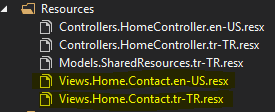
Views.Home.Contact.en-US.resx
Views.Home.Contact.tr-TR.resx
In these files, add a key named PrivacyInfo with the appropriate values.

Now open “Privacy.cshtml” and replace the default message (“Use this page…”) with the localized message by calling the Localizer object. Comment out the existing text:
@* @{
    ViewData["Title"] = "Privacy Policy";
} *@
<h1>@ViewData["Title"]</h1>

@* <p>Use this page to detail your site's privacy policy.</p> *@
@Localizer["PrivacyInfo"]
If you encounter any errors at this stage, double-check the service registration and middleware configuration in Program.cs.
Creating Different Views Based on Language
As an alternative, if you don’t want to work with resource files or your project structure is not suitable for it, you can create separate views for each language.
To achieve this, your Views folder structure should be designed as follows:

In this structure, the framework will automatically load the appropriate view based on the active culture (language).
Using Data Annotations with Language Support
To use localization support with Data Annotations (such as [Required], [Display], etc.), you need to add “AddDataAnnotationsLocalization()” in “Program.cs” after AddControllersWithViews().
// Register localization service and define the path for resource files.
builder.Services.AddLocalization(options => options.ResourcesPath = "Resources");

builder.Services.Configure<RequestLocalizationOptions>(options =>
{
    // We create a list of supported cultures for our application.
    var supportedCultures = new List<CultureInfo>
    {
        new CultureInfo("en-US"),
        new CultureInfo("tr-TR")
    };

    // We define the default culture that our application should use.
    options.DefaultRequestCulture = new RequestCulture("en-US");
    options.SupportedCultures = supportedCultures;
    options.SupportedUICultures = supportedCultures;
});

// Add localization features for views and data annotations.
builder.Services.AddControllersWithViews()
    .AddViewLocalization()
    .AddDataAnnotationsLocalization();
Now go to “HomeController.cs” and create a “Contact” action method and a corresponding view.
We’ll build a sample contact form page.
Under the Models folder, create a class named ContactFormViewModel.cs:
using System.ComponentModel.DataAnnotations;

namespace ASPNETCore_Localization.Models
{
    public class ContactFormViewModel
    {
        [Display(Name = "Name")]
        [Required(ErrorMessage = "NameRequired")]
        public required string Name { get; set; }

        [Display(Name = "Message")]
        [Required]
        public required string Message { get; set; }
    }
}
In this case, we used the “Display” attribute to define the label values shown on the screen for the Name and Message fields, and the “Required” attribute to make sure these fields cannot be left empty. For the error message, we used “NameRequired” as a key to support localization.
Next, go to the Resources folder and create two new resource files:
Models.ContactFormViewModel.en-US.resx
Models.ContactFormViewModel.tr-TR.resx
Inside these files, write the translations for the fields and validation messages.

Note: The {0} placeholder in the error message will be replaced with the value defined in the Display attribute. If not defined, the property name will be shown.
Now go to the “Views/Home/Contact.cshtml” file and add the following HTML code:
@model ContactFormViewModel

<form class="form-horizontal" method="post" action="ContactSave">
    <div class="form-group">
        <label class="col-sm-2 control-label" asp-for="Name"></label>
        <div class="col-sm-10">
            <input type="text" class="form-control" asp-for="Name">
            <span asp-validation-for="Name"></span>
        </div>
        </div>
        <div class="form-group">
            <label class="col-sm-2 control-label" asp-for="Message"></label>
            <div class="col-sm-10">
                <input type="text" class="form-control" asp-for="Message">
                <span asp-validation-for="Message"></span>
            </div>
        </div>
        <div class="form-group">
            <div class="col-sm-offset-2 col-sm-10">
            <button type="submit" class="btn btn-default">Save</button>
        </div>
    </div>
</form>
Then define the corresponding actions in the HomeController.cs:
public IActionResult Contact()
{
    return View();
}

[HttpPost]
public IActionResult ContactSave(ContactFormViewModel viewModel)
{
    return View("Contact", viewModel);
}
To make the page accessible from the homepage, add a link in Layout.cshtml:
 <li class="nav-item">
     <a class="nav-link text-dark" asp-area="" asp-controller="Home" asp-action="Contact">Contact</a>
 </li>
Now, when you run your application, if the culture is tr-TR, the messages will appear in Turkish; otherwise, in English.
To test, you can send the culture value via QueryString like this: ?culture=tr-TR.
Providing Language Support via Routing
In your application, you might prefer to provide language support directly through the URL. Based on the incoming culture value, the application’s language can be dynamically set.
Examples:
sinanbozkus.com/tr-TR/Home
sinanbozkus.com/en-US/Home
For this, we go to the “Program.cs” file and add the following code. First, we need to make some adjustments to our existing registration process. When we define “RequestLocalizationOptions”, we also need to include routing support in this section.
// Register localization service and define the path for resource files.
builder.Services.AddLocalization(options => options.ResourcesPath = "Resources");

builder.Services.Configure<RequestLocalizationOptions>(options =>
{
    // We create a list of supported cultures for our application.
    var supportedCultures = new List<CultureInfo>
    {
        new CultureInfo("en-US"),
        new CultureInfo("tr-TR")
    };

    // We define the default culture that our application should use.
    options.DefaultRequestCulture = new RequestCulture("en-US");
    options.SupportedCultures = supportedCultures;
    options.SupportedUICultures = supportedCultures;

    // We retrieve the relevant culture information from the route, that is, from the URL.
    var routeProvider = new RouteDataRequestCultureProvider
    {
        Options = options
    };
    options.RequestCultureProviders.Insert(0, routeProvider);
});

// Add localization features for views and data annotations.
builder.Services.AddControllersWithViews()
    .AddViewLocalization()
    .AddDataAnnotationsLocalization();
After updating the service registration, we must now change the routing structure to indicate that the culture value will come from the URL.
app.MapControllerRoute(
    name: "default",
     pattern: "{culture=en-US}/{controller=Home}/{action=Index}/{id?}")
    .WithStaticAssets();
You Can Access the Source Code on GitHub:
https://github.com/sinanbozkus/ASPNETCore_Localization
Source:
https://docs.microsoft.com/en-us/aspnet/core/fundamentals/localization

